.png?h=50&iar=0&w=194)
Love's Wi-Fi Frequently Asked Questions
Account & Sign-Up
How do I use Love's Wi-Fi?
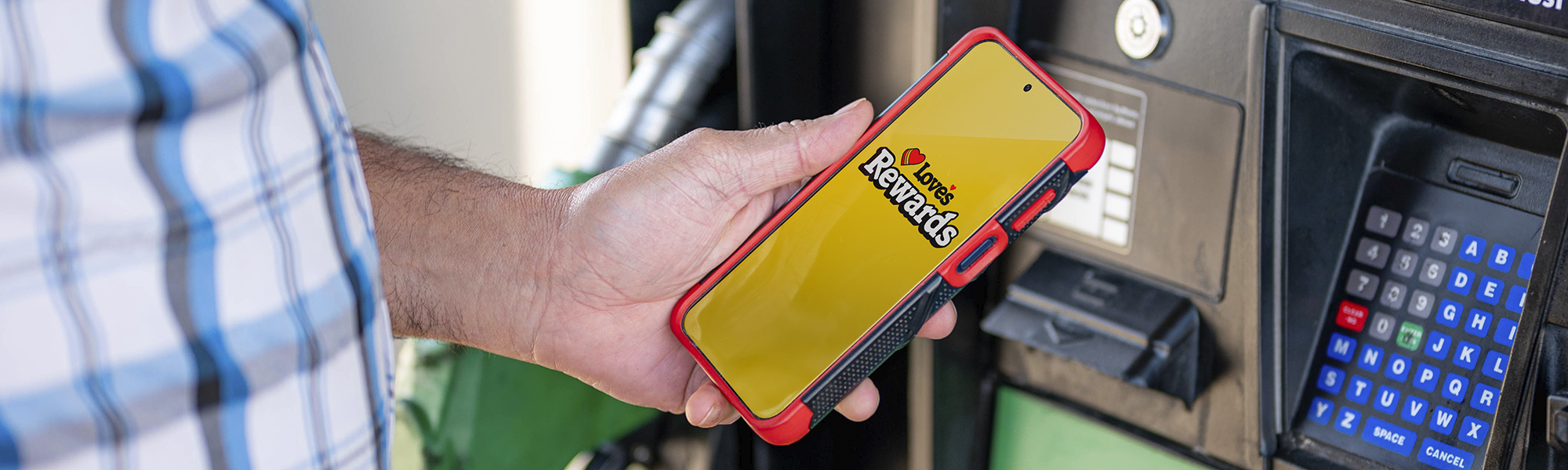
You can create an account directly through our login portal or via the Love’s Rewards App. Accounts are available for both commercial and casual users.
- Option 1: Via the Love's Rewards App
- Download the app from the Apple App Store or Google Play Store.
- Tap Get Started or Sign Up on the home screen.
- Link your Love Rewards card, if applicable, to sync benefits.
- Verify your email and set your password.
- Option 2: Via the Wi-Fi Login Screen
- Connect your device to the Loves-Customer-WiFi network.
- When the login screen appears, select Sign Up Now on the bottom.
Who can use Love's Wi-Fi?
All customers can access Wi-Fi by creating a Love’s Rewards account.
Before You Start
- You need a mobile device with Wi-Fi enabled.
- You must have access to text messages (SMS) on your phone for verification.
Step 1: Connect to the Customer Wi-Fi
- Open Wi-Fi settings on your device.
- Select Loves-Customer-WiFi from the list of available networks.
- Once connected, a login/splash page should open automatically.
- If it does not open, open a web browser and go to any website to trigger the page.
Step 2: Start the Sign-Up Process
- On the splash screen, select Sign Up on the bottom.
Step 3: Create Your Account
- Enter the required information on the account creation screen.
- Select Continue
- A text message with a verification code will be sent to your mobile phone.
Step 4: Verify Your Phone Number
- Enter the verification code you received via text message.
- Continue to the next screen when prompted.
Step 5: Complete the Setup Prompts
- Fill in all remaining prompts on the next page(s).
- Review your information and submit.
- Create a password
- Select Casual or Commercial as your driver type
- Enter your Name, DOB, Zip Code, (for Commercial, enter your Love's Rewards number)
- Select the checkboxes
- When complete, you will be automatically signed in.
Device Management
How do I add a device to my account?
Before you start
- You will need the wireless MAC address.
- Android
- Open Settings > Network & Internet > Wi‑Fi and ensure Wi‑Fi is On.
- Select the Loves‑Customer‑WiFi network and tap the gear icon to view details.
- Scroll down to MAC address.
- iOS
- Open Settings > Wi-Fi > Wi‑Fi and ensure Wi‑Fi is On.
- Select the Loves‑Customer‑WiFi network and tap the information icon (ⓘ) to view details.
- Scroll down to Wi-Fi Address.
- Windows
- Select the Start Menu and open Settings.
- Go to Network & Internet.
- Select Wi-Fi.
- Click Hardware properties (or Advanced network settings > Hardware and connection properties).
- Look for Physical address (MAC).
- Apple
- Click the Apple menu ().
- Select System Settings (or System Preferences).
- Click Network.
- Select Wi-Fi.
- Click Details (or Advanced).
- Locate MAC Address or Wi-Fi Address.
- Other
- Check the device manufacturer instructions for locating the MAC Address.
- Search the internet for instructions.
- Add the Device: In the Love’s Rewards App, go to My Profile > Manage Wi-Fi Devices and enter the MAC address.
How do I manage my registered devices?
Manage all hardware in the Love’s Rewards App under My Profile > Manage Wi-Fi Devices.
- To Remove: Select the device and tap Remove.
- To Edit: Update nicknames to keep your device list organized.
- Device Limit: You can associate up to 15 devices with your account.
How long do devices stay associated with my profile?
Devices stay linked to your account indefinitely until manually removed. They will have internet access as long as you have an active Wi-Fi plan.
How long do devices stay connected to Wi-Fi?
The Wi-Fi plan lasts 90 days, at which point the sign in portal will pop up again.
Can I link a device to more than one account?
No. A device (MAC address) can only be associated with one account at a time. To switch accounts, remove it from the first account before adding it to the second.
Signal Optimization
Where can I expect the best wireless signal?
- Direct Line of Sight: Signal is strongest when there are no obstructions between you and the building's rooftop antennas.
- Avoid "Shadow" Areas: Avoid parking directly against the building; a small distance often provides a better angle to the roof antennas.
- Avoid Blockers: Large vehicles (refrigerated trucks) and metal structures can reflect or weaken signals.
- Minimize Interference: Avoid refueling islands, as they can generate electromagnetic interference.
Troubleshooting & Errors
If you encounter issues, ensure you are connected to the network, then close and restart your browser.
- Redirect Error: "Your session has expired or encountered a redirect issue."
- Fix: Close all browser windows, open a new one, and log in again.
- Page Timeout Error: "This page timed out."
- Fix: Close your browser, reopen the site, and log back in.
- General Troubleshooting:
- Check your internet connection.
- Close and reopen your browser.
- Log back in.